Looking back, it’s rarely a surprise when a WordPress site gets hacked. When you do the forensic work, when you actually dig through the logs, the modified files, the injected code, there’s almost always a clear chain of events that led to the breach. A plugin that have not been updated in several months. A password that was also used on three other services. An ‘admin’ username that never got changed after installation, among other common scenarios.
The breach itself is usually the last step in a sequence that started weeks or months earlier.
I’ve looked into enough hacked WordPress sites to see that the root causes almost always follow the same patterns. It’s not just random bad luck, it’s a pattern. And patterns mean you can actually do something about them. If you understand why sites get breached in the first place, you can fix the issue before an actual hack forces you to.
In this article, we’ll look at those patterns, how the attacks actually work, and how to fix the underlying problem, not just the symptoms.
Table of Contents
Open Table of Contents
- 1. How attackers find WordPress sites
- 2. Pattern 1 - Outdated Plugins and Themes
- 3. Pattern 2 - Weak or reused credentials
- 4. Pattern 3 - Exposed Attack Surface
- 5. Pattern 4 - Insecure hosting environment
- 6. Pattern 5 - No monitoring, late detection
- 7. The compromise chain: How it actually unfolds
- 8. What to check right now
- 9. Preventive controls that actually hold
1. How attackers find WordPress sites
Before getting into root causes, it’s worth understanding how attackers identify vulnerable sites in the first place. it’s not something manual and it’s not targeted, at least not initially. It’s automated, continuous, and indiscriminate.

Scanners run 24/7 across the entire IPv4 address space. Tools like Shodan, Censys, and purpose-built WordPress scanners (wpscan, nuclei) identify:
-
Sites running WordPress (via generator meta tag, readme.html, or response headers)
-
The WordPress version in use
-
Active plugins and their versions
-
Login endpoints (
/wp-login.php,xmlrpc.php) -
Known vulnerable components matched against CVE databases
The moment your site goes live, it will be scanned. Usually within hours. The attackers are not looking for you specifically, they are looking for any website running a vulnerable version of Plugin X, and they have millions of targets to try.
# This is what a basic automated WPScan looks like against your site
# (run this against YOUR OWN site to see what attackers see)
# Install first: sudo gem install wpscan
# (or run it via Docker: docker run -it --rm wpscanteam/wpscan --url ...)
wpscan --url https://yoursite.com \
  --enumerate p,t,u \
  --plugins-detection aggressive \
  --api-token YOUR_WPSCAN_API_TOKEN
The output of the above sample will tell you exactly what a scanner sees:
-
Your WordPress version
-
Detected plugins and their versions (
pchecks the popular-plugins list; useapfor all plugins, which is much slower) -
Any users it can enumerate
-
Flagged vulnerabilities with CVE references.
If you’ve never run this against your own site, the results are usually concerning.
2. Pattern 1 - Outdated Plugins and Themes
This is the most common root cause. Not because people don’t know they should update, they do, but because updates get deprioritized, postponed to prevent breaking changes, or simply forgotten on sites that are not actively maintained.

Why this pattern is so dangerous
When a vulnerability is disclosed for a popular plugin, the gap between disclosure and active exploitation is measured in hours, not days. Attackers monitor CVE feeds, NVD, and plugin changelogs specifically for newly disclosed vulnerabilities.
By the time most site owners see the update notification in their dashboard, exploitation attempts are already running in the wild.
The most commonly exploited plugin categories:
| Category | Reason targeted |
|---|---|
| Page builders (Elementor, WPBakery) | Considerable install base, complex codebase, frequent XSS/RCE vulnerabilities |
| File management plugins | Direct file upload capability, shell upload on day one of exploitation |
| Form plugins | SQL injection vectors, file upload handling, CSRF weaknesses |
| WooCommerce extensions | Payment flows attract targeted attacks, large user base |
| SEO plugins | Admin-level access, large install base |
| Backup plugins | Often store backups in web-accessible directories |
The “abandoned plugin” problem
A plugin that was last updated two years ago is not necessarily vulnerable, but is a signal worth taking seriously. Abandoned plugins don’t receive security patches when new vulnerabilities are discovered.
On top of that, their code just gets outdated over time, making them much easier targets.
# Check for plugins that have not been updated in a long time
# (requires a recent WP-CLI: run `wp cli update` first)
# wporg_status shows "closed" for plugins removed from WordPress.org
# Run this from your WordPress root directory
wp plugin list --fields=name,version,update,status,wporg_status,wporg_last_updated \
  --format=table

# Check a specific plugin's last update
wp plugin list --name=contact-form-7 --field=wporg_last_updated
How to solve and fix this pattern
Updates are the fix, but the process matters:
# Back up the database first (outside the web root)
wp db export ~/backup-before-update-$(date +%F).sql

# Update everything: core, plugins, themes
wp core update
wp core update-db
wp plugin update --all
wp theme update --all

# List installed versions to cross-reference against a vulnerability
# database (WPScan, Wordfence Intelligence, Patchstack)
wp plugin list --fields=name,version,status --format=csv
More importantly: remove plugins you don’t use. WordPress doesn’t load inactive plugins, but their files are still on disk and reachable over HTTP, so a vulnerable PHP file inside an inactive plugin can still be requested directly and exploited. Deactivating is not the same as removing.
# List all inactive plugins
wp plugin list --status=inactive --format=table

# Remove unused plugins entirely (not just deactivate)
wp plugin delete plugin-name-here
3. Pattern 2 - Weak or reused credentials
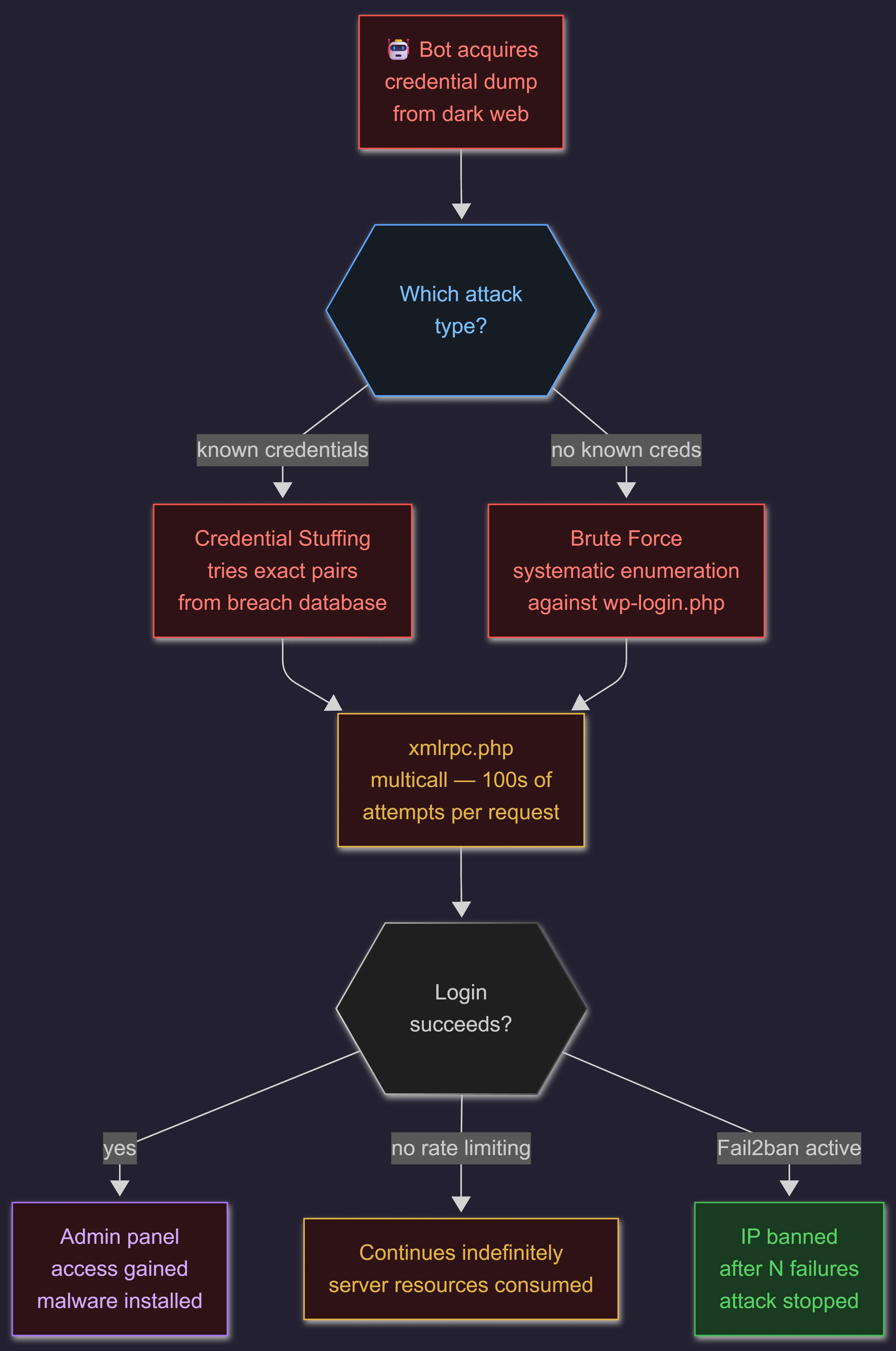
The second most common root cause, and arguably the most preventable. Credential-based attacks against WordPress come in two main forms: brute force and credential stuffing.
Brute force is systematic, is basically automated bots throwing thousands of username and password combinations against wp-login.php or xmlrpc.php. If you don’t have rate limiting set up, that bot will just keep hammering away until it breaks in or gets bored and moves on.
Credential stuffing is more targeted and more dangerous, the attacker has a list of real email/password combinations from a previous breach (purchased on dark web markets) and tries them against your login. If your client or admin user reused a password from any previously breached service, credential stuffing will find it.
The xmlrpc.php problem
xmlrpc.php is a legacy WordPress endpoint that exists for historical compatibility reasons. Most sites don’t need it, unless they rely on Jetpack or the WordPress mobile apps.
The problem is that it’s a second authentication endpoint that many sites never monitor. On old, unpatched installs, system.multicall let a single HTTP request bundle hundreds of login attempts (WordPress 4.4 closed that). It is still used for brute force and pingback abuse, and server-level rules or rate-limiting setups that only cover wp-login.php leave it wide open.
# Block xmlrpc.php entirely at the server level (Nginx)
# /etc/nginx/sites-available/yoursite.conf

location = /xmlrpc.php {
    deny all;
    access_log off;
    log_not_found off;
    return 444;  # Close connection without response
}
# Apache 2.4 equivalent
# .htaccess or VirtualHost config
<Files xmlrpc.php>
Require all denied
</Files>Credential hygiene checklist
The admin username is the first thing every scanner tries. If it exists on your site, you’ve already handed attackers half of the credential pair.
# Check if 'admin' user exists
wp user get admin --field=user_login 2>/dev/null && \
  echo "WARNING: admin user exists — replace it" || \
  echo "OK: no admin user found"

# List all admin-level users
wp user list --role=administrator --fields=ID,user_login,user_email

# Usernames can't be changed (not in the dashboard, not with WP-CLI).
# Create a new admin (WP-CLI prints a generated password), log in with it,
# then delete the old account and reassign its content
wp user create newusername you@example.com --role=administrator
wp user delete admin --reassign=NEW_USER_ID

# Force a password reset for all admin users (sends reset emails)
wp user reset-password $(wp user list --role=administrator --field=ID)
How to solve and fix this pattern
-
Replace the
adminuser with a new, non-obvious administrator account and delete the old one -
Enforce strong, unique passwords: 20+ random characters from a password manager (or a long passphrase), never reused across services
-
Enable two-factor authentication (plugins: Two Factor, WP 2FA, Wordfence Login Security)
-
Block
xmlrpc.phpat the server level unless you have a specific need for it -
Implement login rate limiting (Limit Login Attempts Reloaded or server-level Fail2ban)
4. Pattern 3 - Exposed Attack Surface
Every URL, every file in your WordPress installation that is reachable from the internet is part of your attack surface. Most WordPress sites have a much larger exposed surface than they need to, and most of the it is there by default.
The WordPress default exposure problem
A fresh WordPress installation, without any hardening, exposes:
/wp-login.php          -> admin login
/xmlrpc.php            -> legacy API (brute force vector)
/wp-json/wp/v2/users   -> user enumeration API (returns author slugs)
/wp-content/uploads/   -> directory listing, if the web server allows it
/readme.html           -> WordPress version disclosure
/wp-config.php.bak     -> sometimes left by migration tools
/wp-includes/*.php     -> core PHP files not meant to be requested directly
/.env                  -> if using any modern tooling
The REST API user endpoint is an underestimated one that surprises people. By default, visiting /wp-json/wp/v2/users on most WordPress sites returns a JSON list of every user with published posts, including their slug, which usually matches the login username.
Combined with a weak password, this hands attackers half of what they need for a login attack.
# Test your own site's user enumeration exposure
curl -s https://yoursite.com/wp-json/wp/v2/users | python3 -m json.tool

# If it returns usernames, you need to restrict this
Hardening the WordPress surface area
# /etc/nginx/sites-available/yoursite.conf
# Add these INSIDE your existing server { } block, ABOVE the generic
# "location ~ \.php$ { ... fastcgi_pass ... }" block.
# Nginx uses the first regex location that matches, so order matters.

    # Block PHP execution in uploads directory
    # This is the #1 way web shells persist after initial compromise
    location ~* /wp-content/uploads/.*\.php$ {
        deny all;
    }

    # Block direct access to sensitive files (includes *.bak config backups)
    location ~* \.(htaccess|htpasswd|ini|log|sh|sql|bak)$ {
        deny all;
    }

    # Block WordPress readme and license (version disclosure)
    location ~* ^/(readme\.html|license\.txt)$ {
        deny all;
    }

    # Disable directory listing (Nginx default, stated explicitly)
    autoindex off;

    # Block direct access to PHP files in the wp-includes root
    # (subfolders are left alone: the classic editor loads
    # wp-includes/js/tinymce/wp-tinymce.php directly)
    location ~* ^/wp-includes/[^/]+\.php$ {
        deny all;
    }
# Validate and apply
sudo nginx -t && sudo systemctl reload nginx
// wp-config.php additions
// (place them above the "That's all, stop editing!" line)
// Disable file editing from the dashboard
define('DISALLOW_FILE_EDIT', true);
// Disable file modification entirely (more aggressive)
// WARNING: this also blocks plugin/theme installs, dashboard updates
// and ALL automatic updates. Don't combine it with the auto-update
// setup in section 9; update via WP-CLI or your deploy process instead.
// define('DISALLOW_FILE_MODS', true);<?php
// wp-content/mu-plugins/hardening.php (create the mu-plugins folder if needed)
// Hooks can't go in wp-config.php: it runs before WordPress loads
// add_filter(), so they would cause a fatal error there.
// Hide user endpoints from the REST API for anonymous visitors
// (logged-in users keep them: the block editor needs them)
add_filter('rest_endpoints', function ($endpoints) {
if (is_user_logged_in()) {
return $endpoints;
}
unset($endpoints['/wp/v2/users'], $endpoints['/wp/v2/users/(?P<id>[\d]+)']);
return $endpoints;
});
// Remove WordPress version from all outputs
remove_action('wp_head', 'wp_generator');
add_filter('the_generator', '__return_empty_string');5. Pattern 4 - Insecure hosting environment
This one is trickier to address because it is often outside the site owner’s direct control, but that doesn’t make it less important.
Shared hosting and cross-site contamination
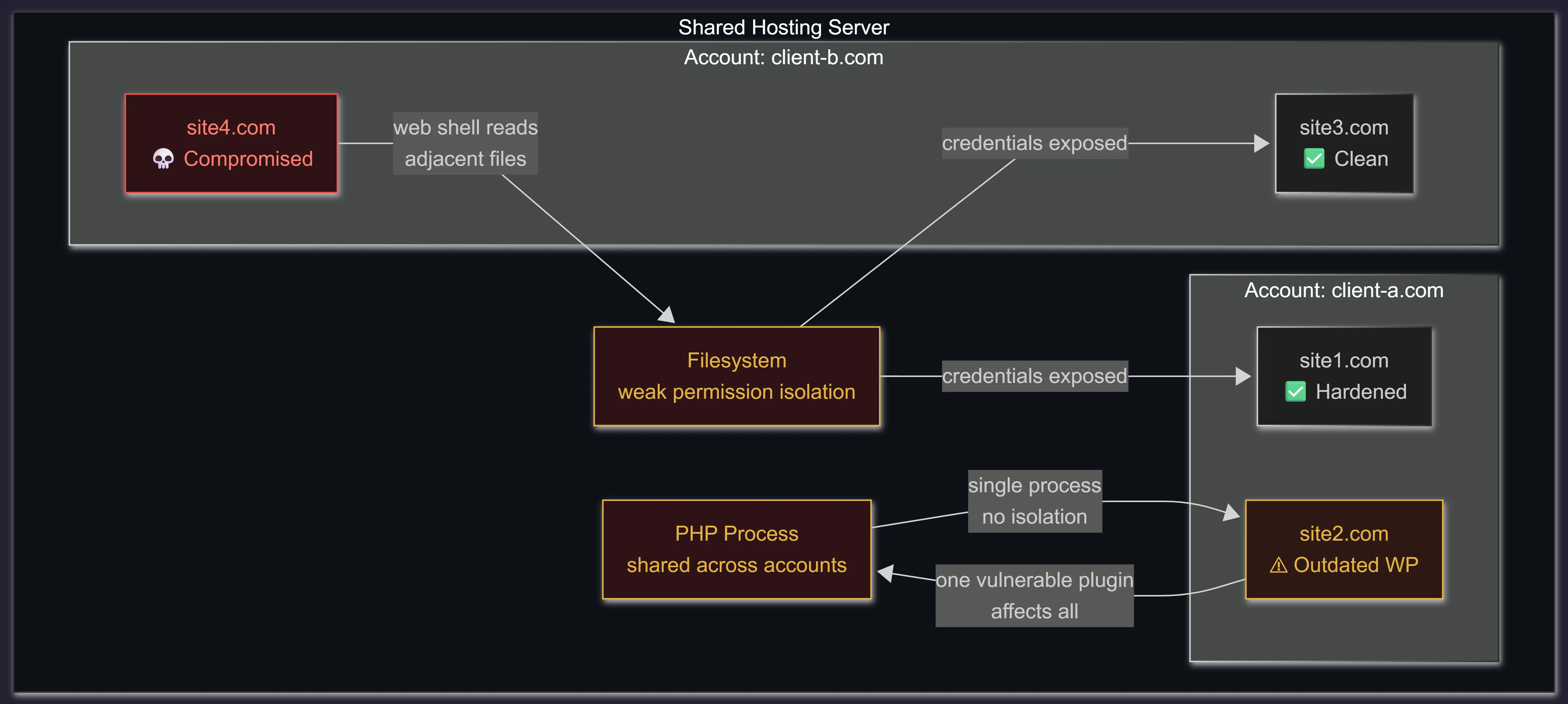
On shared hosting, multiple sites share the same server, the same PHP process, and often the same filesystem permissions model. If one site on the server is compromised, an attacker with a web shell on that site can often read files from neighbor sites in the same account or even across accounts if the server isn’t properly isolated.
This is called cross-site contamination and it is one of the reasons a site can get repeatedly reinfected even after a thorough cleanup, the infection vector is not on the site you cleaned, it is on a neighbor site.
File permission misconfiguration
WordPress files and directories have well-defined permission recommendations that most shared hosting setups don’t enforce correctly:
# Recommended WordPress file permissions
# Directories: 755 (owner read/write/execute, group/other read/execute)
# Files: 644 (owner read/write, group/other read only)
# wp-config.php: 640 (owner read/write, web server group read, others nothing)
#   600 only works if PHP-FPM runs as the same user that owns the file

# Fix permissions recursively
find /var/www/html/yoursite -type d -exec chmod 755 {} +
find /var/www/html/yoursite -type f -exec chmod 644 {} +

# Restrict wp-config.php (group = your web server's group)
sudo chgrp www-data /var/www/html/yoursite/wp-config.php
chmod 640 /var/www/html/yoursite/wp-config.php

# wp-content/uploads must stay writable by the web server user.
# chmod does NOT stop PHP execution there: that's done in the
# web server config (see Pattern 3)
ls -ld /var/www/html/yoursite/wp-content/uploads

# Verify
ls -la /var/www/html/yoursite/wp-config.php
# Should show: -rw-r----- <owner> www-data (or nginx/apache as group)
wp-config.php exposure
wp-config.php contains your database credentials, authentication keys, and table prefix. It is the crown jewel of your WordPress installation.
On some hosting configurations it is readable by other users on the same server, or it is backed up to a web-accessible location by migration plugins.
# Check that wp-config.php doesn't leak from the web.
# 403, or 200 with an EMPTY body (PHP executed, printed nothing), are both fine.
# If the second command prints anything but 0, PHP isn't being executed: fix it now.
curl -s -o /dev/null -w "%{http_code}\n" https://yoursite.com/wp-config.php
curl -s https://yoursite.com/wp-config.php | grep -c "DB_PASSWORD"

# Check if any backup copies exist in web-accessible directories
find /var/www/html/yoursite -name "wp-config*" -not -name "wp-config.php"
find /var/www/html/yoursite -name "*.bak" -o -name "*.old" -o -name "*.backup"
6. Pattern 5 - No monitoring, late detection
This is the pattern that turns a recoverable incident into a catastrophe. A WordPress site can be compromised for weeks, sometimes months, before anyone notices.
During that time the attacker is using the site for SEO spam injection, phishing page hosting, malware distribution, or as a bot node in a larger attack infrastructure.
A compromised WordPress site usually goes unnoticed for weeks. Often, site owners only realize they’ve been hacked when Google slaps a ‘dangerous site’ warning on their search results, or when their hosting provider completely shuts them down for abuse.
By that point:
-
Malware may be deeply embedded in core files, themes, and the database
-
The site may have been blacklisted by Google, Bing, and major security feeds
-
Client data may have been exfiltrated
-
The site may have been used to attack other targets
What monitoring actually looks like
# Detect recently modified PHP files
# If PHP files changed in the last 7 days and you didn't touch them — investigate
find /var/www/html/yoursite -name "*.php" -mtime -7 -ls

# Find PHP files in the uploads directory
# PHP should never be in uploads — any hit here is a red flag
find /var/www/html/yoursite/wp-content/uploads -name "*.php"

# Search for common web shell signatures
# (single quotes on purpose: inside double quotes bash would expand $_)
grep -rl 'eval(base64_decode' /var/www/html/yoursite --include="*.php"
grep -rl 'system($_' /var/www/html/yoursite --include="*.php"
grep -rl 'passthru($_' /var/www/html/yoursite --include="*.php"
grep -rl 'shell_exec' /var/www/html/yoursite --include="*.php"

# Check for hidden files
find /var/www/html/yoursite -name ".*" -type f

# Database: look for injected content (uses your real table prefix)
PREFIX=$(wp db prefix)
wp db query "SELECT ID, post_title, post_status FROM ${PREFIX}posts
  WHERE post_content LIKE '%<script%'
  OR post_content LIKE '%eval(%'
  OR post_content LIKE '%base64%'
  LIMIT 20;"
Nginx access log analysis for suspicious behavior
# Top IPs hitting wp-login.php — brute force detection
grep "wp-login.php" /var/log/nginx/access.log | \
  awk '{print $1}' | sort | uniq -c | sort -rn | head -20

# POST requests to xmlrpc.php
grep "POST /xmlrpc.php" /var/log/nginx/access.log | \
  awk '{print $1}' | sort | uniq -c | sort -rn | head -10

# 404s from a single IP (scanner behavior)
awk '$9 == 404 {print $1}' /var/log/nginx/access.log | \
  sort | uniq -c | sort -rn | head -10

# Requests to /wp-content/uploads/ that returned 200 for .php files
grep "wp-content/uploads.*\.php" /var/log/nginx/access.log | grep " 200 "
7. The compromise chain: How it actually unfolds
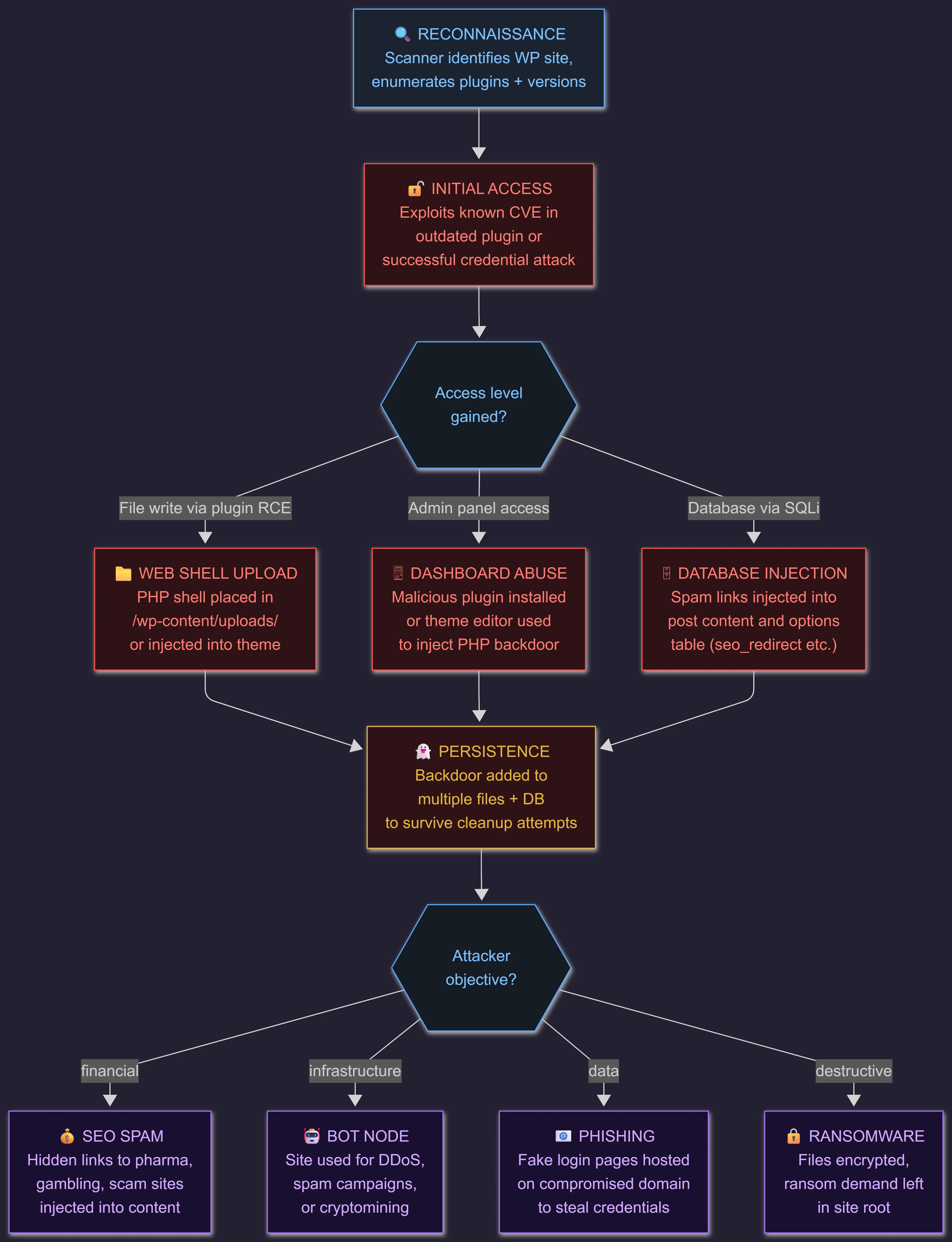
In practice, a WordPress compromise rarely involves a single vulnerability exploited in isolation. It is a chain, each step enabling the next.
Understanding the full chain helps you see where each control fits and why skipping any layer matters.
Why persistence is so hard to clear
The persistence stage is what makes WordPress cleanups genuinely difficult. An experienced attacker doesn’t just upload one shell, they distribute backdoors across multiple locations, because they know the site owner might find and remove the obvious one:
Common persistence locations to check during incident response:
# During incident response, don't let the site's own code run:
# a backdoor can hide admin users or cron events from WP-CLI output
WP="wp --skip-plugins --skip-themes"
PREFIX=$($WP db prefix)

# Theme functions.php (survives plugin cleanup)
grep -rn "eval" /var/www/html/yoursite/wp-content/themes/
grep -rn "base64" /var/www/html/yoursite/wp-content/themes/
grep -rn "gzinflate" /var/www/html/yoursite/wp-content/themes/
grep -rn "str_rot13" /var/www/html/yoursite/wp-content/themes/

# WordPress core and plugin files (modified to blend in)
# Compare against clean WordPress.org checksums
$WP core verify-checksums
$WP plugin verify-checksums --all

# Database options table (persistent redirects, injected code)
$WP option get siteurl
$WP option get home
$WP db query "SELECT option_name, LEFT(option_value, 200) FROM ${PREFIX}options
  WHERE option_name LIKE '%redirect%'
  OR option_value LIKE '%<script%'
  OR option_value LIKE '%eval(%'
  OR option_value LIKE '%base64_decode%';"

# User table (hidden admin accounts)
$WP user list --role=administrator

# Scheduled events (malware re-injection via cron)
$WP cron event list

# mu-plugins and drop-ins (auto-loaded, rarely checked)
ls -la /var/www/html/yoursite/wp-content/mu-plugins/
ls -la /var/www/html/yoursite/wp-content/*.php
Attackers love using the mu-plugins directory for persistence. Scripts hidden here run automatically on every page load, can’t be deactivated from the dashboard, and only show up under a separate “Must-Use” tab that most site owners never open. It works so well because it’s effectively invisible to the average site owner.
8. What to check right now
If you’re reading this with a specific site in mind, here’s a quick triage you can run without taking the site offline:
#1. WordPress version and update status
wp core version
wp core check-update

#2. Plugin vulnerability status
wp plugin list --format=table
# Cross-reference versions at: https://wpscan.com/plugins

#3. Admin users — who has the keys?
wp user list --role=administrator

#4. Recently modified files (last 7 days)
find /var/www/html/yoursite -type f -mtime -7 \
  -not -path "*/cache/*" \
  -not -path "*/uploads/*" \
  | head -30

#5. PHP files in uploads (should be empty)
find /var/www/html/yoursite/wp-content/uploads -name "*.php" -ls

#6. Core file integrity
wp core verify-checksums

#7. Hidden admin accounts in database (uses your real table prefix)
PREFIX=$(wp db prefix)
wp db query "SELECT u.user_login, u.user_email FROM ${PREFIX}users u
  INNER JOIN ${PREFIX}usermeta m ON u.ID = m.user_id
  WHERE m.meta_key = '${PREFIX}capabilities'
  AND m.meta_value LIKE '%administrator%';"

#8. Injected content in posts
wp db query "SELECT ID, post_title FROM ${PREFIX}posts
  WHERE post_content REGEXP '<script|eval[(]|base64_decode'
  AND post_status = 'publish';"
9. Preventive controls that actually hold
When you clean up enough security incidents, you see exactly which controls deliver real value and which ones just offer false comfort.
Here is what actually makes a difference:
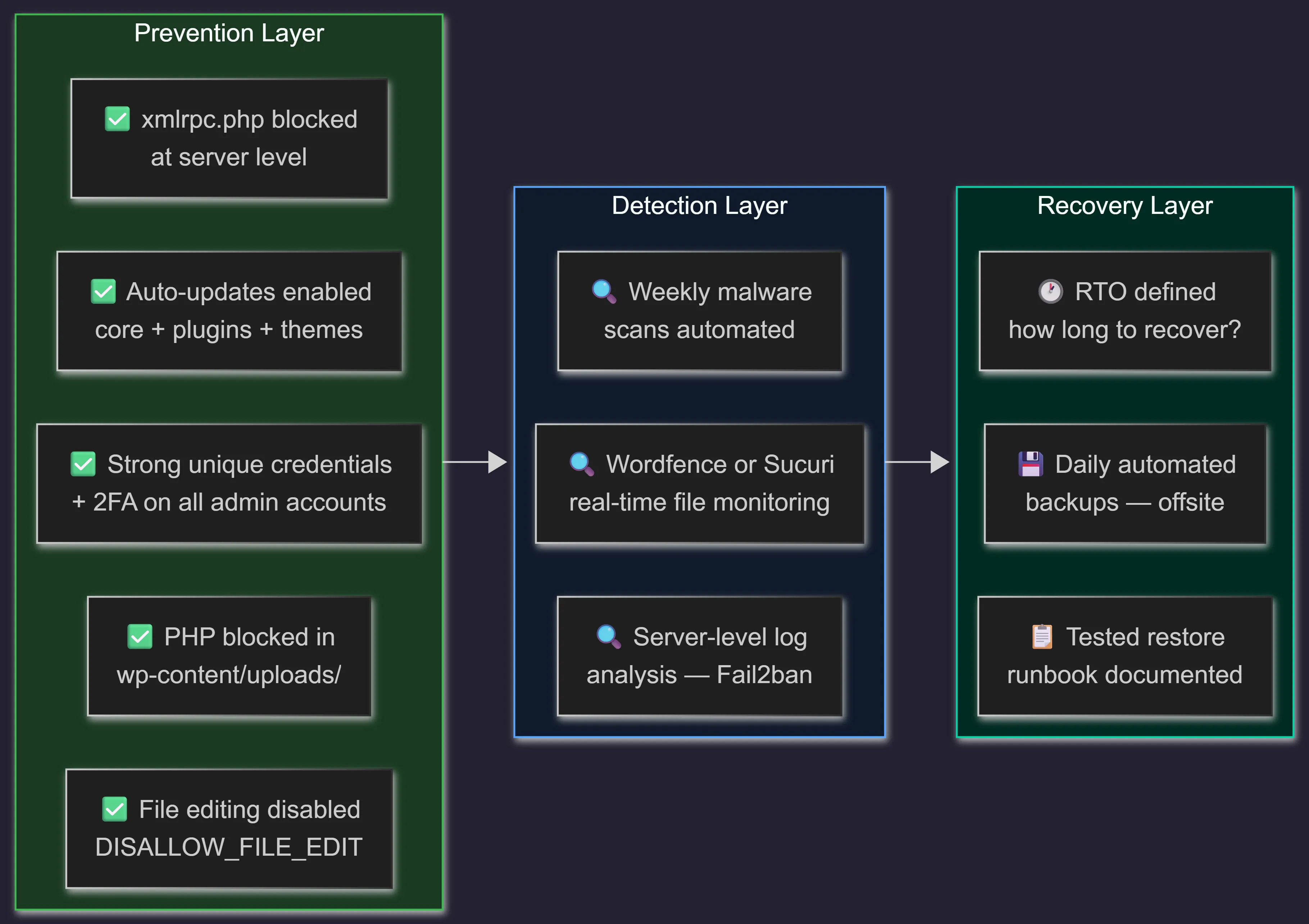
The controls that make the biggest difference
1. Automatic updates: enable them and stop treating updates as optional.
The risk of a breaking change from an update is almost always lower than the risk of running known-vulnerable software.
// wp-config.php — enable automatic updates (core: minor and major)
// Requires DISALLOW_FILE_MODS to be unset or false (see Pattern 3),
// and the web server user must be able to write to the WordPress files
define('WP_AUTO_UPDATE_CORE', true);<?php
// wp-content/mu-plugins/auto-updates.php
// (a mu-plugin survives theme changes; a theme's functions.php doesn't)
add_filter('auto_update_plugin', '__return_true');
add_filter('auto_update_theme', '__return_true');2. A real backup strategy: not the hosting provider’s snapshot as your only copy. Daily backups, stored offsite, with a tested restore process. UpdraftPlus to S3 or BackWPup to Backblaze B2 are solid choices.
3. A Web Application Firewall: Cloudflare’s free tier blocks a significant percentage of automated attacks before they reach your server. It’s not a silver bullet, but it removes a lot of noise and reduces your exposure to opportunistic attacks.
4. Limit login attempts at the server level: not just with a plugin (which still lets every attempt reach PHP and the database), but with Fail2ban watching your Nginx access logs and blocking offenders at the firewall:
# /etc/fail2ban/filter.d/wordpress.conf
[Definition]
# Failed wp-login.php attempts return 200; successful logins redirect (302)
failregex = ^<HOST> -.*"POST /wp-login\.php HTTP/[^"]*" 200
            ^<HOST> -.*"POST /xmlrpc\.php
ignoreregex =

# /etc/fail2ban/jail.local
[wordpress]
enabled  = true
port     = http,https
filter   = wordpress
logpath  = /var/log/nginx/access.log
backend  = auto
maxretry = 5
bantime  = 7200
findtime = 600
# Test the filter against your real log, then apply
sudo fail2ban-regex /var/log/nginx/access.log /etc/fail2ban/filter.d/wordpress.conf
sudo systemctl restart fail2ban
sudo fail2ban-client status wordpress
# Behind Cloudflare (proxied), Nginx logs Cloudflare's IPs, not the visitor's:
# configure set_real_ip_from (Cloudflare ranges) + real_ip_header CF-Connecting-IP
# first, and keep in mind a local firewall ban won't stop proxied traffic.5. Remove what you don’t use: unused plugins, unused themes (keep only one non-active theme as a fallback, delete the rest), unused admin accounts, unused hosting features.
Every unused component is an attack surface you’re maintaining for no benefit.
The pattern that ties all of this together is simple: most WordPress compromises are preventable, and most of the prevention is unglamorous maintenance work. Updates, credential hygiene, surface reduction, monitoring. Nothing here requires advanced security expertise, it requires discipline and a process.
The sites that get compromised and stay compromised are the ones where security is treated as a one-time setup task. The sites that hold up are the ones where security is part of the operating rhythm, weekly check-ins, automated updates, regular backups that get tested.
If you manage WordPress sites for clients, the best thing you can do is build that routine right into your service. When a site eventually gets breached, having a clean backup and a clear runbook turns what would otherwise be a total crisis into just a recoverable incident. That’s the real difference.
Written by Pablo Huertas - Cybersecurity Specialist & Technical Writer
19 years in enterprise security operations and incident response management.